
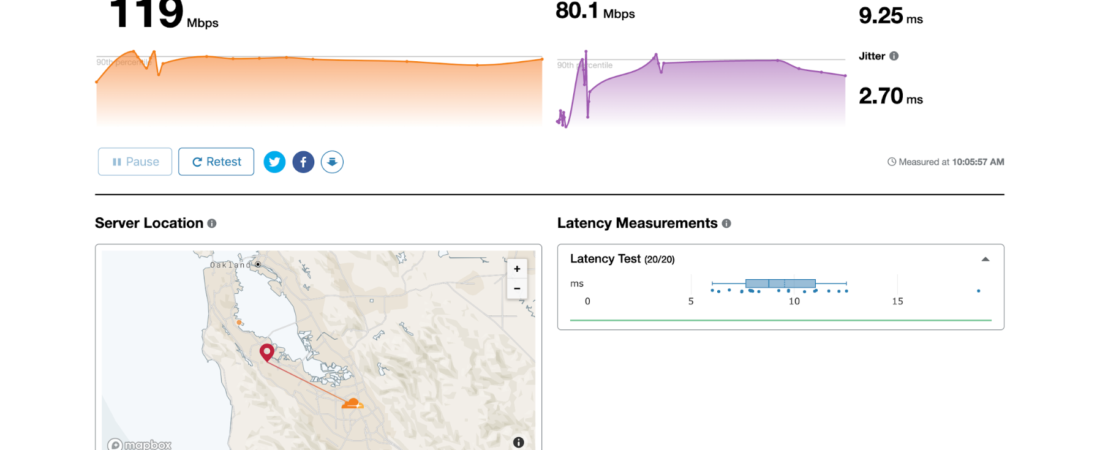
A slow internet connection can turn a simple task into a frustrating experience. Videos buffer, websites take forever to load, and video calls suddenly freeze just when you need them most. But how do you know whether the problem comes from your internet provider, your Wi-Fi network, or the website you’re trying to access?
That’s where a cloudflare speed test can help.
This browser-based tool measures important aspects of your internet connection, including download speed, upload speed, latency, and jitter. Unlike a test that focuses only on how quickly data travels, it provides useful clues about how your connection may perform during everyday activities.
Whether you’re working remotely, gaming online, streaming movies, or managing a website, understanding these results can help you make smarter decisions about your internet connection.
What Is a Cloudflare Speed Test?
The Cloudflare speed test is an online internet performance tool provided by Cloudflare. It helps users evaluate how their devices connect to the internet by measuring several performance indicators.
You can access the test through your web browser without installing dedicated software. It runs measurements by exchanging data with Cloudflare’s network infrastructure and uses the results to give you an overview of your connection’s performance.
Try it directly at Cloudflare Speed Test .
One important distinction: your internet speed isn’t determined by download capacity alone. A connection might deliver impressive download speeds but still struggle with online gaming or video conferencing if latency is high or the connection is unstable.
Cloudflare’s testing approach helps you look beyond a single number and understand the bigger picture.
How to Run an Internet Speed Test With Cloudflare
Getting started is straightforward, even if you aren’t particularly technical.
-
Open speed.cloudflare.com in your browser.
-
Allow the page to load and begin its measurements.
-
Wait while the test evaluates your connection.
-
Review the displayed download speed, upload speed, latency, jitter, and other available results.
-
Repeat the test if you want to compare results at different times of day.
For more reliable readings, close applications that consume significant bandwidth, pause large downloads, and avoid moving far away from your Wi-Fi router during testing.
If possible, run one test over Wi-Fi and another using a wired Ethernet connection. This comparison can help you determine whether your wireless network is affecting performance.
Keep in mind that speed tests transfer data, and the amount used can vary depending on the test and connection conditions. If your internet package has a strict data limit, consider that before running repeated tests.
Understanding Your Speed Test Results
The numbers become much more useful once you understand what each measurement tells you.
1. Download speed
Download speed measures how quickly data reaches your device. It’s usually displayed in megabits per second (Mbps).
A higher download rate generally helps with streaming, downloading files, loading media-heavy websites, and browsing with multiple tabs open. However, the speed you need depends on what you’re doing and how many devices share your connection.
2. Upload speed
Upload speed measures how quickly your device sends data to the internet. It matters when uploading videos, backing up files, hosting live streams, or participating in video meetings.
If your downloads are fast but your video calls look blurry, a weak upload rate could be part of the problem.
3. Latency
Latency measures the delay involved in communication between your device and a remote server. It’s typically expressed in milliseconds (ms).
Lower latency generally means faster responses. This is especially important for competitive gaming, remote desktop access, and interactive applications.
4. Jitter
Jitter describes variations in latency over time. A low, consistent reading is usually preferable because applications that transmit audio or video in real time need data to arrive at predictable intervals.
5. Packet loss and loaded latency
Packet loss occurs when data packets fail to reach their destination. Even a small amount can affect calls, gaming, and other real-time activities.
Loaded latency measures delay while data is being transferred. If latency increases sharply during downloads or uploads, your connection may become sluggish whenever someone else uses significant bandwidth.
Cloudflare also provides network quality scores for activities such as streaming, gaming, and video calls, helping translate technical measurements into practical guidance.
What Do Your Results Mean?
There’s no single speed that guarantees a perfect internet experience. Your needs, network conditions, and the services you use all matter.
|
Measurement |
What you generally want |
Why it matters |
|---|---|---|
|
Download speed |
Enough capacity for your usage |
Streaming, browsing, downloads |
|
Upload speed |
Sufficient capacity for sending data |
Video calls, backups, uploads |
|
Latency |
Low and consistent |
Gaming and responsive apps |
|
Jitter |
Low variation |
Stable voice and video |
|
Packet loss |
As close to zero as possible |
Reliable data delivery |
|
Loaded latency |
A modest increase under load |
Smooth multitasking |
Treat these as interpretation guidelines, not universal pass-or-fail thresholds. A household streaming a film has different requirements from a gamer competing online or a professional uploading large video files.
Cloudflare Speed Test vs. Other Internet Speed Tests
Cloudflare isn’t the only option. Tools such as Ookla Speedtest and Fast.com can provide useful alternative measurements.
The key difference is that tests may use different server locations and measurement methods, so their results won’t always match.
|
Feature |
Cloudflare |
Ookla Speedtest |
Fast.com |
|---|---|---|---|
|
Download measurement |
Yes |
Yes |
Yes |
|
Upload measurement |
Yes |
Yes |
Available through expanded results |
|
Latency information |
Yes |
Yes |
Yes |
|
Jitter information |
Yes |
Yes |
Not its main focus |
|
Best use |
Connection quality and consistency |
Comparing measured connection performance |
Quick checks, especially for streaming |
These are general distinctions; interfaces and available measurements can change.
One useful habit is to compare results across two testing services when your connection seems unusually slow. If both show a similar problem, your connection or provider may be involved. If the results differ significantly, server selection, routing, or testing methodology could explain the gap.
Neither outcome alone proves where the fault lies.
How to Improve Your Internet Speed and Stability
A test is most valuable when you use its results to make practical changes.
-
Restart your router: This can resolve temporary connection issues, although it won’t fix every underlying problem.
-
Move closer to your router: Walls, distance, and interference from nearby wireless networks can weaken Wi-Fi performance.
-
Use Ethernet when possible: A wired connection helps reduce wireless interference and makes troubleshooting easier.
-
Limit background downloads: Cloud backups, software updates, and other devices can consume available bandwidth.
-
Compare peak and off-peak hours: If performance drops every evening, network congestion may be contributing.
-
Contact your ISP when necessary: Repeatedly poor results on a wired connection may justify asking your provider to investigate.
When I’m interpreting speed-test results, I look at consistency and loaded latency alongside download speed because a high headline number doesn’t always translate into a smooth experience.
Consider a real-world scenario: you’re attending an important video meeting while a family member downloads a large game. Your download speed might look impressive during an idle test, yet your call starts freezing once the download begins. Testing loaded latency and checking for packet loss can help identify the problem. Pausing the download or enabling appropriate quality-of-service settings on a compatible router may improve the experience.
Is Cloudflare’s Speed Test Safe to Use?
Cloudflare’s online test doesn’t require you to install a separate application. However, using it does involve sharing some network information.
According to Cloudflare, the service receives your IP address, estimates your city and country, and identifies your internet service provider’s network through its autonomous system number (ASN). Cloudflare truncates the IP address it receives and explains how measurement data is used and shared in its privacy information. The test may consume up to 200 MB of data, so users with limited data allowances should be aware of that possibility.
For the full details, review the privacy information available on the official speed-test website before running the test.
Conclusion
The Cloudflare speed test offers more than a quick internet speed reading. By examining download speed, upload speed, latency, jitter, and packet loss, you can better understand why your connection feels fast in some situations but frustratingly slow in others.
The most effective approach is simple: run the test under consistent conditions, compare the results at different times, and make changes based on the measurements rather than guesswork. If problems persist, compare another testing service and contact your ISP when appropriate.
Ultimately, a good internet connection isn’t just about speed. It’s about delivering reliable performance when you need it most.
FAQs
1. Is Cloudflare speed test free?
Yes. Cloudflare’s public internet speed test is available online for free, and you can run it through a compatible web browser without installing dedicated software.
2. How accurate is Cloudflare’s internet speed test?
It provides useful measurements of connection performance, but results can vary with Wi-Fi interference, network congestion, device limitations, server routing, and testing conditions. Repeat measurements for a more representative picture.
3. Why is my Cloudflare speed test slower than my internet plan?
Your actual results may be affected by Wi-Fi signal strength, other connected devices, background applications, your router, or network congestion. Try testing over Ethernet with other bandwidth-heavy applications paused.
4. What is a good latency result?
Lower latency is generally better, particularly for gaming and video calls. However, what’s acceptable depends on the application, distance to the server, and consistency of the connection. Compare idle latency with loaded latency rather than judging one number alone.
5. Can Cloudflare speed test detect packet loss?
The tool can report packet-loss measurements when its packet-loss test is available. Packet loss can indicate network instability, but additional troubleshooting may be needed to determine its source.
6. Does Cloudflare speed test measure Wi-Fi speed or internet speed?
It measures your device’s connection performance to Cloudflare’s network. The result reflects the combined effects of your device, local network, internet connection, and route to the testing infrastructure rather than measuring your Wi-Fi hardware in isolation.
7. How often should I test my internet speed?
Test whenever you experience performance issues, after changing your router or internet plan, or when comparing providers. For a useful baseline, run several tests at different times and under similar conditions.