
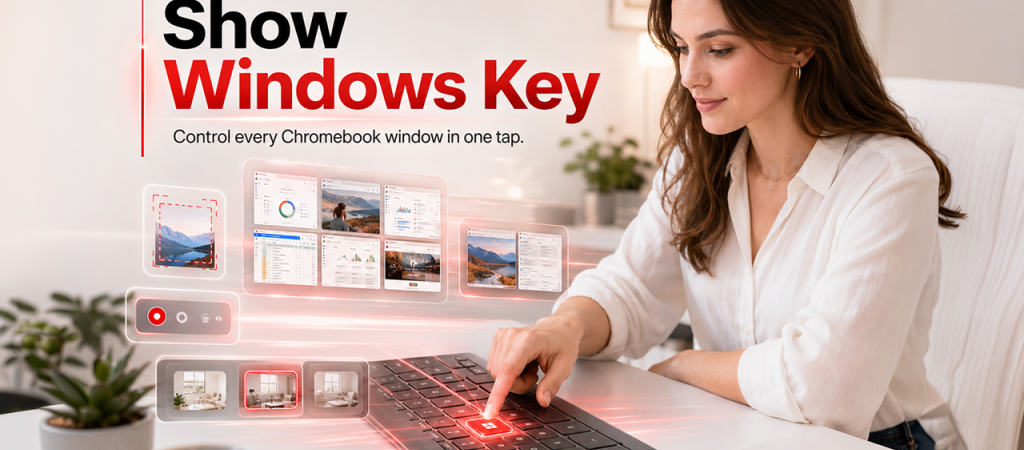
If you have recently switched from a Windows laptop to a Chromebook, you may notice something missing from your keyboard: the familiar Windows key. It usually sits between the Ctrl and Alt keys on a Windows computer and helps users open the Start menu, search for files, and perform useful shortcuts. On most Chromebooks, however, that key is replaced by a different layout designed specifically for ChromeOS.
So, how can you show the Windows key on a Chromebook? The answer depends on what you mean by “show.” You might want to identify its equivalent key, display a Windows-style symbol, or use Windows keyboard shortcuts on your Chromebook. Fortunately, you can accomplish many of the same tasks without installing additional software.
Understanding the difference between Windows and Chromebook keyboards makes the transition much easier. Once you know which key performs each function, everyday tasks such as searching, switching windows, and managing applications become far more straightforward.
Does a Chromebook Have a Windows Key?
No, most Chromebooks do not have a dedicated Windows key like traditional Windows laptops. Instead, they feature a Search or Launcher key, which is commonly located where the Caps Lock key appears on many conventional keyboards.
Depending on your Chromebook model and keyboard configuration, this key may display a magnifying glass, a circle, or a Launcher symbol. Its primary purpose is to open the ChromeOS Launcher, where you can search for apps, files, settings, and other information.
The Launcher key is often the closest equivalent to the Windows key for everyday tasks, although the two do not perform exactly the same functions.
For example, pressing the Windows key on a Windows PC opens the Start menu. Pressing the Launcher key on a Chromebook opens the ChromeOS Launcher, which provides similar access to installed applications and search.
How to Find the Windows Key Equivalent on a Chromebook
If you are trying to locate the Windows key equivalent, start by examining the bottom-left area of your keyboard.
Follow these steps:
-
Look for the key between the Ctrl and Alt keys on the left side.
-
Check whether it has a magnifying glass or Launcher symbol.
-
Press the key once to open the ChromeOS Launcher.
-
Type the name of an app, file, or setting to search for it.
If your Chromebook uses a different keyboard layout, the Launcher key may appear in another position or have a different label.
You can also open the Launcher by clicking the circular Launcher icon in the corner of your screen, depending on your ChromeOS version and shelf configuration.
The important point is that you do not need an actual Windows key to access most of the features people commonly associate with it.
How to Remap the Search or Launcher Key
If you want the Chromebook keyboard to behave more like a Windows keyboard, ChromeOS lets you change the function of certain keys. This is especially useful if you frequently switch between operating systems.
Follow these steps:
-
Click the time in the bottom-right corner.
-
Open Settings.
-
Select Device, then Keyboard.
-
Find the built-in keyboard settings.
-
Select Remap keyboard keys or the equivalent option available on your ChromeOS version.
-
Choose a different action for supported keys.
You can change the Search or Launcher key to perform another supported action, such as Caps Lock. However, you cannot turn every Chromebook key into an exact copy of every Windows function. The available options depend on your device and ChromeOS version.
One important detail: remapping changes what a key does; it does not physically add a Windows logo to your keyboard.
Can You Use a Windows Keyboard on a Chromebook?
Yes. You can connect many standard USB or Bluetooth keyboards to a Chromebook. This is a practical solution if you prefer the traditional Windows layout or need a full-size keyboard for work.
Interestingly, Google confirms that the Windows key between Ctrl and Alt on a connected Windows keyboard functions as the Search or Launcher key on ChromeOS. You can therefore use the existing Windows key to open Chromebook search without installing special software.
Here is how the two keyboard setups compare.
| Feature | Built-in Chromebook keyboard | External Windows keyboard |
|---|---|---|
| Windows logo key | Usually absent | Usually present |
| Search and app launcher | Search/Launcher key | Windows key generally performs this function |
| Keyboard remapping | Supported keys can be customized | Supported external keys can also be customized |
| Familiar Windows layout | Different from Windows | Closer to a traditional PC |
| Extra equipment | Not required | Requires a compatible keyboard |
For most users, the built-in keyboard is sufficient. An external keyboard is worth considering if you type for hours, prefer a number pad, or regularly move between a Chromebook and a Windows desktop.
Useful Chromebook Shortcuts That Replace Windows Actions
You do not need to memorize dozens of shortcuts immediately. Start with the ones that help you work faster every day.
| Action | Chromebook shortcut |
|---|---|
| Open search or Launcher | Search/Launcher key |
| Turn Caps Lock on or off | Alt + Search/Launcher |
| View open windows | Show windows key |
| Open the Files app | Shift + Alt + M |
| Lock your screen | Search/Launcher + L |
| View keyboard shortcuts | Ctrl + Alt + / |
| Take a screenshot | Ctrl + Show windows |
| Open a new browser tab | Ctrl + T |
Some shortcuts can vary by device or ChromeOS version, and the Show windows key is a separate key from Search/Launcher. Check Google’s official Chromebook keyboard guide for the relevant layout and instructions.
In my experience, learning just a handful of frequently used keyboard shortcuts can make switching from Windows to ChromeOS feel much more natural.
A Practical Example: Switching From Windows to Chromebook
Imagine that you have used a Windows laptop for several years and recently purchased a Chromebook for online work. You instinctively press the Windows key whenever you want to find a program, but your new keyboard has no Windows logo.
Instead of searching through menus, you press the Search or Launcher key and type the name of your application. The app appears in the results, and you can open it immediately.
Later, you connect your usual Windows keyboard to the Chromebook. Its Windows key now serves as the Search or Launcher key, so you can retain a familiar physical layout while using ChromeOS.
This small adjustment can save time throughout the day, particularly if your work involves writing articles, browsing websites, researching keywords, or managing several applications.
What If the Windows Key Equivalent Does Not Work?
If pressing the Search or Launcher key does nothing, try these troubleshooting steps.
-
Check your keyboard layout: Make sure you are pressing the correct key. The Search or Launcher key is commonly found where Caps Lock would be on a conventional keyboard.
-
Check the keyboard settings: Open Settings and review the key mappings to see whether the key has been assigned another action.
-
Reconnect your external keyboard: If you are using USB or Bluetooth, disconnect and reconnect it. For Bluetooth devices, check that the keyboard is paired.
-
Restart your Chromebook: A restart can resolve temporary input problems.
-
Test another keyboard: This can help determine whether the problem comes from the Chromebook or the external keyboard.
If the issue continues, use the built-in Diagnostics tool or consult your Chromebook manufacturer. Avoid installing unknown extensions that promise to add a Windows key; they generally cannot reproduce the full system-level behavior of a physical keyboard key.
FAQs
1. How do I show the Windows key on a Chromebook?
Most Chromebooks do not have a dedicated Windows key. Use the Search or Launcher key to access apps and search. Alternatively, connect a compatible Windows keyboard and use its Windows key as the Launcher key.
2. Where is the Windows key on a Chromebook keyboard?
There is usually no Windows logo key on the built-in keyboard. Look for the Search or Launcher key, commonly positioned where Caps Lock appears on a standard keyboard.
3. Can I add a Windows logo to my Chromebook keyboard?
You can use a keyboard sticker to display a Windows logo, but that only changes the physical appearance. It does not change ChromeOS functionality. You can also connect an external Windows keyboard.
4. Can I change the Search key into another key?
Yes. ChromeOS supports remapping certain keys through Settings under Device and Keyboard. The available actions depend on your device and operating system version.
5. Does a Windows keyboard work with a Chromebook?
Yes. Compatible USB and Bluetooth keyboards generally work with Chromebooks. Some special keys and Windows-specific shortcuts may behave differently, but basic typing and many common functions work normally.
6. Is the Chromebook Launcher key the same as the Windows key?
They have a similar purpose when opening search or accessing applications, but they are not identical in every situation. Windows-specific shortcuts may not work the same way in ChromeOS.
Also Read: SumoSearch Guide: Uses, Features, Privacy & Safety 2026
Conclusion
Finding the Windows key equivalent on a Chromebook is easier once you understand how ChromeOS handles its keyboard. Most models use a Search or Launcher key instead of a dedicated Windows key, and that key provides quick access to apps, files, and search.
If you prefer a traditional keyboard layout, connect a compatible Windows keyboard and use its Windows key as the Launcher key. You can also customize supported keys through ChromeOS settings to make your workflow more comfortable.
The best approach is to learn the essential shortcuts first and customize your keyboard only when necessary. With a few simple adjustments, you can move between Windows and Chromebook environments without disrupting your everyday work.